How to Run PC Games on Android with Winlator

play pc games on android winlator

Running Windows PC games on an Android phone is one of the hardest things a smartphone can do. Winlator makes this possible by combining Wine, which translates Windows system calls, with Box86 and Box64, which translate x86 and x64 processor instructions for ARM devices.

Because of this, many Windows games can run directly on Android. However, using the default settings often leads to poor performance, crashes, or overheating. Proper setup is important for getting better frame rates and smoother gameplay.

This guide explains how to install Winlator, create the best container settings, launch games, and fix common problems.

play pc games on android winlator

Hardware Requirements and Performance Expectations

Before installing Winlator for Android, it is important to check whether the phone has enough power to handle the extra workload. Running PC games through translation requires much more processing power than running normal Android apps.

Processor (SoC)

Qualcomm Snapdragon processors usually provide the best experience. This is mainly because they support the Turnip graphics driver, which is highly optimized for Adreno GPUs.

MediaTek Dimensity and Samsung Exynos processors can also run Winlator. However, these chips usually depend on VirGL graphics translation. As a result, game compatibility and performance may be lower compared to Snapdragon devices.

RAM

At least 6GB of RAM is recommended for older or lighter games.

For newer 3D games, 8GB to 12GB of RAM is strongly recommended. More memory helps prevent Android from closing Winlator when the system runs low on available RAM.

Storage

Fast internal storage can improve loading times and reduce stuttering.

Phones with UFS 3.1 or UFS 4.0 storage usually provide a smoother experience because games can load textures and other assets more quickly.

Installing Winlator

Winlator is distributed as an Android APK file.

Step 1: Install the APK

Download the latest Winlator APK release.

Open the File Manager application on the phone and find the downloaded APK file.

Tap the APK file and begin the installation process.

If Android blocks the installation, allow permission for installing apps from unknown sources in the browser or file manager settings.

Once installation is complete, open Winlator.

Preparing Game Files

Winlator does not include any games.

Games must be copied to the device separately.

It is generally best to use DRM-free installers or already-installed game folders copied from a Windows PC.

Copy the complete game folder into the Android Download folder.

Winlator automatically maps this folder as the D: drive inside the Windows environment.

This makes it easy to access game files after launching a container.

Creating a High-Performance Container

Winlator runs games inside containers. A container is a custom Windows environment with its own settings.

Open Winlator and tap the “+” button in the top-right corner.

A new container configuration screen will appear.

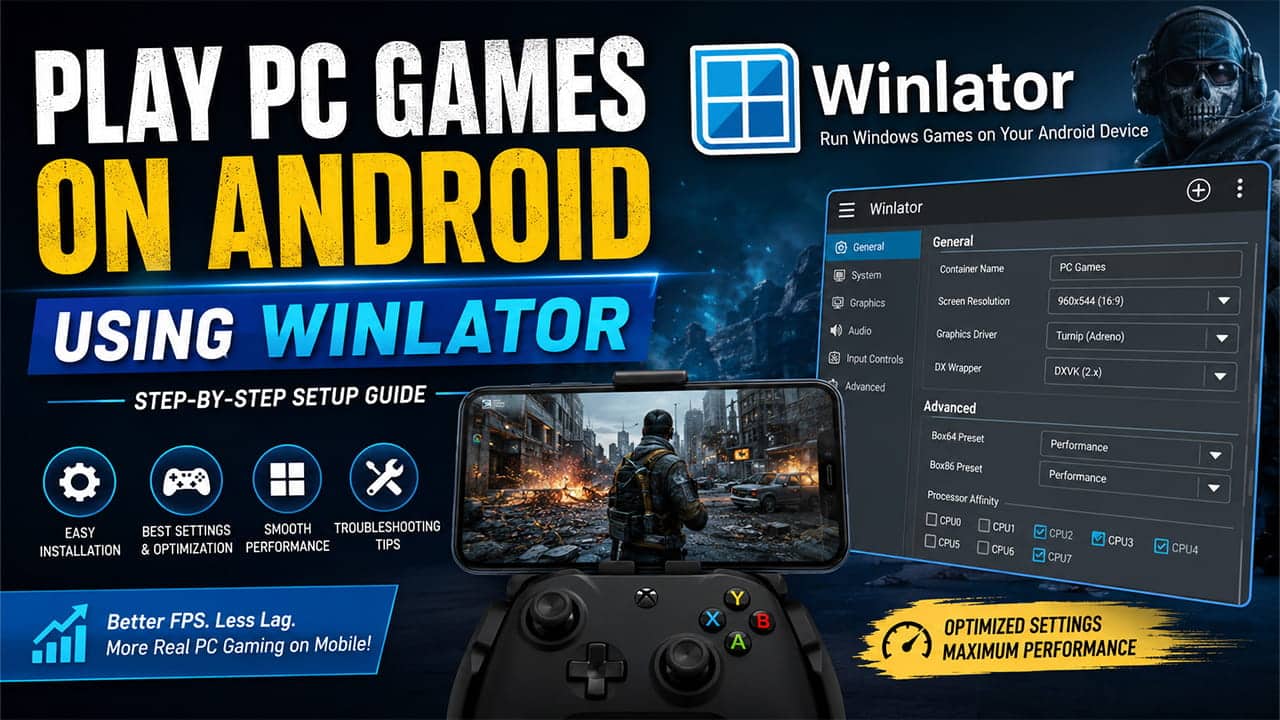
The settings below usually provide a good balance between visual quality and performance.

General Tab Settings

Screen Resolution

Lower resolutions significantly improve performance.

Recommended settings include:

  • 960×544
  • 800×600

Trying to run games at full phone resolution such as 1080p or higher can reduce frame rates dramatically.

Lower resolutions can later be improved visually using FSR upscaling.

Graphics Driver

Choose the graphics driver based on the phone’s hardware.

Snapdragon Devices

Select:

  • Turnip (Adreno)

MediaTek or Exynos Devices

Select:

  • VirGL

Using the correct driver can improve both stability and performance.

DXWrapper

Set DXWrapper to:

  • DXVK (latest version or DXVK 2.x)

DXVK converts Direct3D instructions into Vulkan commands. Android devices handle Vulkan much more efficiently than many older graphics methods.

Advanced Tab Settings

Box86 and Box64 Presets

Change the preset from:

  • Compatibility

to:

  • Performance
  • Extreme

These options increase instruction translation speed and can improve game performance.

Processor Affinity

Processor affinity controls which CPU cores Winlator can use.

Many modern Android processors contain both efficiency cores and performance cores.

Efficiency cores are designed to save battery life. Performance cores are designed for heavy workloads.

For better gaming performance:

  • Uncheck CPU 0
  • Uncheck CPU 1
  • Enable CPU 2 through CPU 7

The exact core layout may differ depending on the device.

This setup helps Winlator use the faster cores whenever possible.

After completing the settings, tap the checkmark button to save the container.

Launching a Game

After creating the container, locate it in the Winlator home screen.

Tap the three-dot menu beside the container.

Select:

Run

The Wine desktop environment will start.

The phone screen now behaves like a Windows desktop.

Use touch controls to move the mouse cursor.

Double-tapping acts as a left mouse click.

Open the D: drive.

The D: drive displays the contents of the Android Download folder.

Navigate to the game directory.

Find the game’s main executable file (.exe).

Double-tap the executable file to launch the game.

Setting Up Controls

Most Windows games are designed for a keyboard and mouse. Because of this, touch controls must be configured manually.

While the game is running, swipe inward from the left side of the screen.

This opens the Winlator side menu.

Select:

Input Controls

Choose one of the following:

  • Virtual Gamepad
  • Existing control templates

Templates are useful for different game genres such as:

  • First-person shooters
  • Strategy games
  • Role-playing games

Customizing Controls

The Control Profile Editor allows further customization.

Users can:

  • Move button positions
  • Resize buttons
  • Assign keyboard keys to touch buttons
  • Map mouse actions
  • Connect gyroscope controls to mouse movement

Proper control mapping can make games much easier to play on a touchscreen device.

Troubleshooting and Optimization Guide

Running Windows games on Android involves many layers of translation. Because of this, problems can happen even when the setup appears correct.

The following solutions help fix common issues.

Game Crashes and Returns to Android

Possible Cause

  • Wrong graphics driver
  • Incompatible DXVK version

Solution

Open the container settings.

If the device uses a Mali GPU, make sure Turnip is not selected.

Switch to VirGL if necessary.

Try an older DXVK version such as 1.10.3.

If the problem continues, test the game using WineD3D instead of DXVK.

Black Screen with Audio Playing

Possible Cause

The game may fail during display initialization or fullscreen setup.

Solution

Open the game’s display settings.

Change the display mode to:

  • Windowed Mode

Disable VSync completely.

Restart the game and test again.

Audio Stuttering and Crackling

Possible Cause

  • CPU bottleneck
  • Audio buffer problems

Solution

Open the Winlator side menu.

Launch the built-in Task Manager.

Check CPU usage while the game is running.

In the container settings, switch the audio system from:

  • ALSA

to:

  • PulseAudio

This often improves sound stability during demanding scenes.

Performance Drops After Several Minutes

Possible Cause

The phone may be overheating and reducing CPU or GPU speed automatically.

This process is called thermal throttling.

Solution

Remove thick phone cases if possible.

Allow better airflow around the device.

Limit frame rates using Winlator’s XServer settings.

Another option is changing the Box64 preset from:

  • Extreme

to:

  • Stable

This reduces overall system load and heat generation.

Fixing VRAM Errors

Some games may display messages claiming there is not enough video memory available.

Solution

Open the container editing menu.

Go to:

Environment Variables

Create a new variable:

MESA_GL_VERSION_OVERRIDE

Set the value to:

4.5

You can also increase the Video Memory Size setting.

Recommended values include:

  • 2048MB
  • 4096MB

The best choice depends on the amount of RAM available on the phone.

Devices with higher RAM capacities can usually handle larger VRAM allocations more effectively.

Final Notes

Winlator gives Android devices the ability to run many Windows PC games without needing a separate computer. Performance depends heavily on hardware, driver selection, container settings, and cooling conditions.

Snapdragon devices with Turnip drivers generally deliver the best results. Lower screen resolutions, proper CPU core allocation, and DXVK optimization can significantly improve performance. When problems appear, adjusting graphics drivers, DXVK versions, audio settings, and thermal management settings often resolves the issue.

With the right configuration, many classic and modern PC games can run surprisingly well on Android hardware.

Is LDPlayer Safe for Windows? Privacy, Ads, and Security Guide

ldplayer safety

Choosing an Android emulator often feels difficult. Many users want strong gaming performance, but they also care about privacy and security. One of the most popular choices is LDPlayer. Since it is free software made by a Chinese company called XuanZhi International, many people ask important questions about it.

Users often wonder if the emulator is safe. Some people worry that it collects too much personal data. Others fear that it may secretly run crypto-mining programs in the background. These concerns have existed for years, especially in gaming forums and social media discussions.

However, judging software only through rumors can create confusion. A better approach is to look closely at how the software works, how it installs on Windows systems, and how its privacy settings operate. When these areas are examined carefully, the overall picture becomes much clearer.

ldplayer safety

What Is LDPlayer and How Does It Work With Windows?

LDPlayer is an Android emulator designed mainly for gaming. It creates a virtual Android environment on a Windows computer so mobile apps and games can run smoothly on desktop hardware.

The software translates ARM-based Android instructions into x86 instructions that Windows computers can understand. Because of this process, mobile games can run on a PC with keyboard and mouse support, higher frame rates, and larger screen sizes.

The Virtual Machine and Sandboxed Environment

At its core, LDPlayer for Windows works through virtualization technology. The emulator creates an isolated virtual machine, often called a VM. This virtual Android system uses part of the computer’s CPU power and RAM while remaining separated from the main Windows operating system.

This separation is important for security. Android apps running inside the emulator normally cannot access or damage core Windows files directly. In most situations, the virtual environment acts like a barrier between the Android apps and the main desktop system.

Because of this sandbox structure, the emulator itself does not automatically create major security risks for Windows users. The virtualization process is widely used across many software products and is considered a normal technology in the software industry.

Is LDPlayer a Virus?

The simple answer is no. Official versions of LDPlayer do not contain viruses, trojans, or hidden malware. Most trusted antivirus scanners show clean results when checking the official installer.

Still, some users become worried after seeing warnings on antivirus websites or during installation. These alerts usually happen for specific reasons.

Why Antivirus Programs Sometimes Show Warnings

When LDPlayer installers are uploaded to security scanning services like VirusTotal, a few smaller antivirus engines may label the file as “Suspicious” or “Riskware.” In most cases, these warnings are false positives.

The emulator needs deep system access to manage virtualization functions, network bridges, and hardware acceleration features. Because of these actions, some security programs become cautious and trigger alerts automatically.

This behavior does not automatically mean the software is dangerous. Many advanced system tools receive similar warnings because they interact closely with Windows components.

The Main Concern: Bundled Software

The biggest complaint about LDPlayer usually involves bundled software during installation.

Since the emulator is free, the installer sometimes shows optional offers for extra programs. These may include antivirus trials, browsers, search tools, or system utility software.

If users quickly click “Accept” without reading the prompts carefully, these extra applications may install automatically on the computer.

Although these bundled programs are usually not malicious, many antivirus companies classify them as PUAs, which means Potentially Unwanted Applications. They can slow down the system, change browser settings, or display additional ads.

Because of this installation method, some users mistakenly believe the emulator itself is malware.

The Crypto-Mining Rumors Explained

In 2019, many online discussions claimed that LDPlayer secretly installed crypto-mining software. Reports mentioned a process called fyservice.exe that caused high CPU usage on some computers.

These claims spread quickly across Reddit forums and gaming communities. As a result, many users became suspicious of the emulator.

Later investigations showed that many affected users had downloaded modified installers from unofficial websites instead of the official source. Some third-party sites added harmful files to the installation packages before distributing them.

Older emulator versions also had weaker protections against malicious Android ads. In certain cases, harmful ad scripts inside Android apps created abnormal background activity.

Over time, official updates fixed many of these weaknesses. Modern versions of LDPlayer do not show built-in crypto-mining behavior during standard security testing.

What Data Does LDPlayer Collect?

While the software itself is generally safe from malware concerns, privacy remains a separate issue.

Like many free software platforms, LDPlayer collects some telemetry data. This practice is common across gaming software, browsers, and mobile applications.

Local Emulator vs Cloud Services

It is important to separate the local emulator from cloud-based services connected to the company.

The standard desktop version runs locally on the user’s PC. However, cloud gaming platforms connected to the company may store session logs, streaming information, and account activity on remote servers.

Some past security discussions involved cloud database configuration problems linked to cloud services. These incidents mainly affected cloud-related systems rather than local desktop installations.

For users running the normal offline emulator on a personal computer, these cloud issues do not directly expose the Windows machine itself.

Still, the software may collect standard telemetry information such as:

  • Device hardware information
  • IP addresses
  • General location data
  • System performance details
  • Emulator usage statistics

This information is usually described inside the company’s privacy policy.

Keyboard Privacy and Typing Concerns

Another topic often discussed by privacy-focused users involves Android keyboards inside emulators.

Some default Android keyboards use cloud prediction systems to improve typing suggestions and autocorrect features. These systems may send typing data to external servers temporarily.

Because of this, many security experts recommend avoiding sensitive typing inside unknown virtual keyboards. Passwords and private account details should be handled carefully.

Using trusted login methods and secure password managers can reduce this risk significantly.

How to Use LDPlayer More Safely

People who want better privacy and security can follow several simple safety steps during installation and setup.

Download Only From the Official Website

The safest approach is downloading the emulator only from the official developer source.

Third-party software sites, modified installers, and torrent downloads create the highest risk. Unofficial files may contain hidden malware or unwanted changes.

Always verify that the browser address shows the correct official domain before downloading.

Reject Optional Software Offers

During installation, users should choose Custom Installation whenever possible.

Each installation screen should be reviewed carefully. If extra software offers appear, users should manually click “Decline” or “Reject” unless the additional program is truly needed.

This step helps prevent unnecessary browser extensions, toolbars, or background utilities from entering the system.

Use a Separate Google Account

When signing into the Google Play Store inside the emulator, using a separate Google account is a smart security habit.

A dedicated gaming account helps separate emulator activity from important personal data, financial details, emails, and work-related services.

This extra layer reduces risk if any app inside the emulator behaves suspiciously.

Disable Unnecessary Permissions

Inside the emulator settings, users can disable features they do not need.

Root access should remain turned off unless a specific application requires it. Anonymous telemetry programs and optional data sharing settings can also be disabled.

Android apps inside the emulator should not receive unnecessary permissions either. If a mobile game requests access to contacts, SMS messages, or exact GPS location without a clear reason, those permissions should be denied.

Most games do not need that information to function properly on a desktop emulator.

Final Thoughts on this

LDPlayer is generally safe when downloaded and used correctly. The official software is not a virus, and it does not behave like traditional malware during normal use.

Most security concerns connected to the emulator come from bundled advertising software, unofficial downloads, and common telemetry collection practices. These problems are important, but they are very different from destructive malware infections.

Users who install LDPlayer carefully, reject optional bundled programs, disable unnecessary permissions, and use a separate Google account can reduce most privacy and security risks significantly.

For gaming performance, the emulator remains a popular option. At the same time, basic security habits still matter. Careful installation practices and smart privacy settings make a major difference when using any Android emulator on Windows systems.

MT Manager App Review – Simple Tool to Edit Files on Android

mt manager app

Most people want apps that are easy to use. They also don’t want to see ads. It’s true that ads can be very annoying. Some apps push too many of them, and that ruins the fun. So, when people find something like the MT Manager App, they get excited. This app lets users handle files without any trouble. They can copy, move, rename, and even open special files. That’s why it’s so useful for both kids and grownups.

Another thing people like is that it works without needing the internet. So, even if you are not online, the MT Manager App still works. That helps when you’re in places with no signal. Plus, the app doesn’t take up much space on your phone. This makes it a good choice for people with older or slower phones too. It gives power without being hard to use.

mt manager app

How the MT Manager App Helps with APKs

The MT Manager App can open APK files. APK files are apps before they get installed. That means users can see what’s inside an app before putting it on their phone. This can help them stay safe. Many people use it to check for ads or bad stuff hidden inside apps. That makes the MT Manager App good for learning and for safety.

It can also help users change parts of the APK file. For example, if someone wants to change the app’s name or language, they can do that. They don’t need a computer or special tools. Everything happens inside the app. Even changing pictures or removing ads is possible, but it should only be done for learning or testing.

Because of these tools, the MT Manager App is now popular among Android users who want to learn how apps work. They get more control and don’t need to be tech experts.

Easy File Management Without Ads

File manager apps are everywhere. But not all of them are good. Some are filled with ads. Others are too hard to use. That’s where the MT Manager App wins. It gives users a clean way to manage their files. You can open folders, cut files, paste them somewhere else, and even zip or unzip folders. It’s like what you can do on a computer, but now on your phone.

The best part is how fast it works. Moving large files or opening a bunch of folders doesn’t slow it down. Users also say it helps them find old files they forgot about. That’s great when your phone starts to feel full. And because there’s no pop-up or banner ads, it feels smooth to use.

If you’re tired of messy file apps that make everything hard, then this app is worth trying. It gives back control to the user and doesn’t ask much in return.

Other Things the MT Manager App Can Do

Besides APKs and file control, the MT Manager App also lets people edit text files. These files are used for notes, coding, or system info. So, if you’re trying to change something in a game or app setting, this app helps a lot. The text editor inside is clean and simple. It also has line numbers, which makes reading long files easier.

You can also search for words inside big files. That helps save time. For people who write code or scripts, this is a big help. Another cool thing is the dual-window mode. It lets you open two folders at the same time. You can drag files between them without going back and forth. That saves time and keeps things simple.

It also supports many file formats. This includes rar, zip, and tar files. So, you don’t need extra apps to open them. That means less space taken on your phone. Plus, updates are quick and fix bugs fast. People like when apps stay fresh.

Why You Might Want the MT Manager App

There are many reasons people use the MT Manager App. First, it’s free of ads. That already makes it better than many others. Second, it works offline. You don’t need internet to use its best tools. That makes it good for travel, school, or work.

Next, it gives tools that help with learning. People who want to know how apps work can look inside APK files. That’s helpful for students or hobby developers. Also, it’s easy to use. You don’t have to learn a lot before you get started. The buttons are clear and the layout makes sense.

The MT Manager App also doesn’t use much battery. Some apps keep running in the background. This one doesn’t. It only works when you open it. That means it’s light and safe for your phone.

Alight Motion APK Download | Motion Graphics and Video Editing

alight motion apk download

Alight Motion is a professional motion graphics and video editing app designed for mobile devices. Developed by Alight Creative, this app enables users to create high-quality animations, motion graphics, visual effects, and video compositions directly on their smartphones or tablets. It is widely used by content creators, social media influencers, and video editors who require a portable yet powerful tool for editing and animation.

alight motion apk download

Features of Alight Motion

Alight Motion official offers a wide range of features that make it a powerful video editing and motion graphics app. It supports multiple layers, keyframe animation, visual effects, and blending modes for creative compositions. Users can apply color correction, control video speed, and use chroma key for background removal. The app also supports vector and bitmap graphics, making it ideal for both beginners and professionals in video editing and animation.

  • Multiple Layers – Users can add multiple layers of graphics, video, and audio for complex compositions.
  • Keyframe Animation – This allows users to create smooth and dynamic animations with precise control over movements.
  • Visual Effects – The app provides a variety of effects, such as blur, distortion, shadows, and gradients, to enhance videos.
  • Vector and Bitmap Support – Users can work with vector graphics and import bitmap images for intricate designs.
  • Blending Modes – Different blending modes help in achieving creative transitions and overlays.
  • Color Correction – Alight Motion offers tools like color grading, filters, and adjustments to improve visual aesthetics.
  • Speed Control – Users can control video speed, create slow-motion effects, or fast-forward videos.
  • Chroma Key (Green Screen) – The app allows users to remove backgrounds and replace them with different visuals.
  • Export Options – Projects can be exported in multiple formats, including MP4 video, GIF animations, or image sequences.
  • Free and Pro Versions – While the free version has limited features and watermarked exports, the Pro version offers full functionality with advanced tools and no watermark.

How to Install Alight Motion

Installing Alight Motion is a simple process:

For Android Users:

  1. Open the Google Play Store on your device.
  2. Search for Alight Motion.
  3. Click Install and wait for the app to download and install.

For iOS Users:

  1. Open the App Store.
  2. Search for Alight Motion.
  3. Tap on Get and enter your Apple ID password if prompted.
  4. Wait for the installation to complete.

After Installation:

  1. Open the app and grant necessary permissions for storage and media access.
  2. Sign up or log in to start using the app.

How to Use Alight Motion

  1. Start a New Project – Open the app and tap on the + button to create a new project.
  2. Choose Aspect Ratio and Resolution – Set the video resolution and frame rate according to your needs.
  3. Import Media – Add videos, images, or audio from your gallery or use built-in assets.
  4. Edit and Animate – Utilize layers, keyframes, effects, and transitions to create stunning visuals.
  5. Preview and Adjust – Play back your edits to check for smoothness and make necessary adjustments.
  6. Export the Final Video – Once satisfied, export the video in the desired format and resolution.

FAQs about Alight Motion

1. Is Alight Motion free to use?

Yes, but the free version includes watermarks and limited features. The Pro version unlocks all features.

2. Can I use Alight Motion on PC?

Currently, Alight Motion is designed for mobile devices, but it can be used on a PC through an Android emulator.

3. Is Alight Motion good for beginners?

Yes, it has an intuitive interface with tutorials to help beginners get started easily.

4. Does Alight Motion support 4K video editing?

Yes, the app supports high-resolution editing, including 4K.

5. Is Alight Motion safe?

Yes, it is a trusted app available on official app stores.

Final Words

Alight Motion is a powerful yet user-friendly video editing and motion graphics app that caters to both beginners and professionals. With its extensive features, easy installation, and versatility, it stands out as a top choice for mobile video editing. Whether you are a content creator or an aspiring animator, Alight Motion provides all the tools needed to bring your creative ideas to life.

Remini App: Transform Your Old Photos with This Simple App

remini app

If you have old photos that look blurry or damaged, Remini App can make them clear and new again. This app is easy to use. Just upload your photo, and Remini App does all the work to improve it. Many people use it to fix their old family pictures or any photo that needs to look better.

remini app

How Remini App Works

First, you need to download Remini App from the Appstore. After installing, open the app and choose a photo you want to fix. This uses special technology to analyze your photo. Then, it fixes the blurry parts and makes the whole picture clear. This process is quick. In just a few minutes, you have a photo that looks like it was taken today.

Features

Remini App is not just for fixing old photos. It also has tools to make your face look better in selfies. It can smooth your skin and brighten your eyes, making your selfies pop. Also, if your photo is too dark or too light, this app can adjust it to look perfect. This makes it a great app for anyone who loves taking and sharing photos.

Why Everyone Loves This App?

People love Remini App because it is so easy to use. You don’t need to be good at technology to make your photos look better. Also, it works fast, so you don’t have to wait long to see your new photos. Parents use it to fix old photos of their kids, and young people use it to make their selfies look great. Everyone finds something helpful in this app.

Remini App in Everyday Life

Think about all the photos you have on your phone. With Remini App, you can go back and fix any of them. Next time you find an old blurry photo, try using this to make it clear. It’s like giving your memories a new life. This app can really change how you save and enjoy your pictures.

In conclusion, Remini is a great tool for anyone who wants to improve their photos. Whether you’re fixing old photos or making your new ones look even better, this makes it simple and fast. Try it out and see how it can help you bring your photos back to life.

Zarchiver Download: Easily Manage and Secure Your Files

Zarchiver Download is a handy app that lets you manage files on your phone or tablet. It helps you open zip files, which are like folders that keep many files together but take up less space. You can also create your own zip files with Zarchiver, making it easier to send many files at once through email or other apps.

zarchiver

How to Use Zarchiver Download

Firstly, you need to download the app from your app store. Once it’s installed, opening it up will show you all the files on your device. Here, you can pick any file you want to zip or unzip. For example, if you have a lot of pictures from a trip, you can put them all in one zip file. This makes your storage neat and saves space. Also, if someone sends you a zip file, Zarchiver Download can open it so you can see the files inside.

Features

Zarchiver Download is not just about zipping and unzipping files. Moreover, it can also protect files with a password. This is great for keeping your files safe. If you have important documents or private photos, you can add a password so only you can open them. Furthermore, the app supports many different file formats, not just zip files. This means you can manage almost any type of file using Zarchiver.

Tips for Zarchiver Download

To get the most out of Zarchiver, keep your app updated. New updates often have improvements and new features. They can also fix any bugs, making the app run smoother. Also, try to organize your files into categories. For example, keep all your music files in one folder and all your documents in another. This organization will help you find things faster in Zarchiver Download.

Why Choose Zarchiver Download?

Choosing Zarchiver Download is a smart move because it’s simple to use and very helpful. It lets you handle many different types of files easily. It also saves space on your device, which is really useful if your phone or tablet is running out of space. Plus, the added security with password protection makes this app a trustworthy tool for managing your files. So, it’s a good idea to use this app to keep your device organized and your files safe.

3uTools for Mac Free Download for All MacBook M1 M2

3uTools for Mac is a handy tool for people who use a Mac and have an iPhone, iPad, or iPod. It helps you handle files on your iOS device, move data around, and put new apps on your device. This tool is very easy to use. You don’t need other software like iTunes to work with it. To start, you just connect your device and choose “Trust This Computer.” It’s that simple!

3utools for mac

3uTools for Mac Ease of Use

Using 3uTools for Mac is straightforward. Unlike other tools, you won’t need to install extra software like iTunes. The process to connect your device is easy too. Just plug your device into your computer and agree when it asks if you want to “Trust This Computer.” After that, you’re all set to manage your files and apps.

3uTools for Mac Key Features

3uTools for Mac is great for many things. First, it lets you save your iOS data on your computer. Also, you can transfer files to your Apple devices easily. Another cool thing is that you can install apps on your iOS devices with it. Plus, it has tools to make your device run better. For example, it can clean up files you don’t need anymore.

Additional Utilities

This tool can do more than just handle files. It can change videos into a format that works on iOS devices. You can even make your own ringtones with it. But, there’s a small downside. The video converter only works with MP4 videos and might be slow.

Advantages

One of the best things about 3uTools for Mac is that it’s free. You get a lot of useful features without having to pay anything. It’s also very good at what it does, especially when you compare it to other iOS file managers for Mac.

Limitations

Even though 3uTools for Mac is great, it’s not perfect. The video converter could be better. Right now, it only works with MP4 videos and might not be very fast. It would be nice if it could handle more video formats and work faster.

Conclusion

In the end, 3uTools for Mac is a fantastic option for anyone with an iOS device and a Mac computer. It has lots of features that help you manage your device, and it’s free. Even though it has a few small downsides, like the video converter, it’s still a great choice. If you have an iOS device, you should definitely check out 3uTools for Mac.

ShareMe APK 2.12.07 Download | Latest Version (11.7MB)

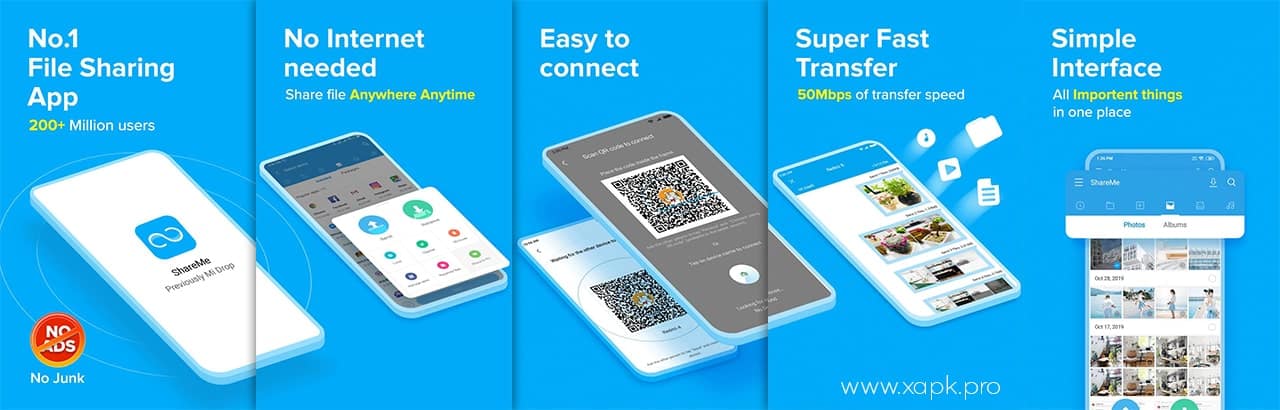
ShareMe is the best file-sharing app (APK) for all Platforms. It has more types of functions. It will support almost all types of android devices. Even though it has a simple structure, anyone can install the app and work with the app simply. Some of you are worrying that it is having hard processes to continue. But don’t worry, it is just a simple app. Catch its most valuable features by clicking here. Certainly, you will like ShareMe Apk.

shareme

How to Download Shareme Apk for Android?

ShareMe Apk 2.12.07 Download [11.7MB]

APK NameShareMe
Latest Versionv2.12.07
Size11.7MB
Android VersionAndroid 4.4+
LicenseFree

By following simple steps you would be able to get the Shareme apk into your device. Follow the below steps as mentioned here.

  • As you are using an android device, download the apk using the above link.
  • Then find the downloaded ShareMe apk file.
  • Open and install the app.
  • Sometime later the app would finish installing process.
  • Launch the ShareMe Apk and start sharing with it.

So then the user would be able to continue the tasks freely.

What is Shareme apk?

ShareMe Apk is the #1 file sharing app in the play store and it is from Xiaomi Inc. Actually it is an improved sharing application. Certainly, by that, every user could get multiple benefits. If you are going to download and work with the app, certainly you should know these facts. While getting this app make sure that you are getting the latest version, which is 1.29.9. All existing bugs have been fixed with the app. Shareme has been offered by Xiaomi Inc. Over 50 million people have accumulated over the app. Aware of such details before getting this app to your devices.

shareme apk

Features

  • ShareMe Apk supports very speedily transferring files from one device to another. When you want to transfer files within your device to another of your friends or siblings, just open this app and continue using it.
  • The place won’t be affected by the sharing. At anytime anywhere, the user would be able to share any files anywhere
  • No ads appear while using the app. The Shareme apk is supported for both devices on the android and ios devices.
  • All Android devices including Xiaomi, oppo, Samsung, Realme, Oneplus, LG, and every other android device are compatible with the app. If you have such an app, you would totally experience it.
  • The app developers have aimed for personal privacy as well as the security of the users. Therefore while using ShareMe Apk the users don’t need to worry about their security and their safety. It is 100% assured.
  • Share all types of files by the app. As stated here through ShareMe Apk you would be able to file videos, images, and music at anywhere anytime.
  • No requirement for an Internet connection in order to share the existing files. Shareme Apk is free from network connections. Although this app works free with mobile data.
  • Shareme is a very fast app. When compares with Bluetooth, it is having a speed of 200 times faster than Bluetooth
  • Shareme is has a very friendly UI.
  • Sometimes the file transferring could get interrupted while transferring takes place. Don’t worry you would be able to resume file transfer with only one tap
  • There are no restrictions against the usage of the app. Therefore every user should be able to share any file at any size.
  • There are more other languages support for the Shareme apk. Therefore any user would be able to start working with it.

How to Download ShareMe for PC

Just as the above there are only a few simple steps in order to get the app successfully for your pc. Follow them and install the app here.

  • First of all, you need an android emulator for that task.
  • Get a perfect android emulator such as BlueStacks.
  • Then download the APK file using the link.
  • Then search to find the Shareme apk which you downloaded before.
  • Click on the install tab to get the app onto your pc.
  • Sometime later the app would be downloaded.
  • Open the app and start what you want in there.

These are very simple steps to be followed. Install it and start working with ShareMe Apk easily. Your all tasks would be easy too.

How to Use ShareMe APK

First of all, you should have to install ShareMe Apk for your device. Then launch the app. By that, you could edit your device nickname. By using an identification name, the other person would be able to discover your device easily for sharing. Then you should have to select whether you are going to receive files or send files. First, we move to the file sending options. Select the send option. Then all contents of your device will appear. By that, you have chosen the items you are going to share. Select the photos, videos, or device files. Altogether the user is able to send the apps too. Make sure the other device is also ready to receive them.

Then the connecting of two devices has to be done. There are three options for the connection of two devices. You could connect the devices by Bluetooth, by WiFi, or by scanning the QR code too. Select an easy method for that. In order to receive some files from a nearby device, you have to be ready after turning on WiFi or Bluetooth. In this way, you could use ShareMe Apk successfully.

Safety and legality

Safety and legality are basic facts that any user has to find when installing an app. For file-sharing, you have to choose a secure app basically. Because sometimes we want to share our personal details too. Therefore we have to install an app with 100% security. If not, we are at risk of thieves. Don’t worry about that when you install Shareme for your device. Because it is totally secure. There are no harmful things contained in the ShareMe Apk. Although there won’t be any legal restrictions on the app. Use it without any issue.

Final Words

By the stated facts surely readers could understand how to use ShareMe Apk and how to work with the app successfully. Actually, this is an easy app for you to use. Always privacy protected and have much more advantages here. Now it’s your turn to try it and judge the app. I’m sure that you will explore much more information about ShareMe Apk.

EasyShare APK 5.6.10.4 Download | Latest Version (25.9MB)

EasyShare is an app (APK) that can use for file sharing anytime, anywhere. It is really easy to use. On the occasions that you want to share anything on your device with another person, this is a perfect app for that purpose. If you haven’t tried this EasyShare apk, this is your chance to try it and discover more functions by the EasyShare apk.

easyshare

How to Download EasyShare Apk for Android

EasyShare Apk 5.6.10.4 Download [25.9MB]

APK NameEasyShare
Latest Versionv5.6.10.4
Size25.9MB
Android VersionAndroid 5.0+
LicenseFree

Installing this EasyShare apk is quite simple for your android device. Here follow these simple steps in order to successfully install this EasyShare apk into your android device.

  • Click the above download button to download the APK file.
  • After that search for the app named EasyShare and locate the downloaded apk.
  • Again the app will be on the downloaded apk list.
  • Choose the correct app and tap on the install tab to successfully finish the installation process.
  • Within few minutes the app would finished download.

After finishing that the user is capable of working with EasyShare apk.  Certainly, you can finish working with the app perfectly. Try it and choose if it is perfect or not for you.

What is EasyShare Apk? 

EasyShare apk is actually a powerful app with super fast speed. It doesn’t even contain any advertisements in the app. The app supports Android devices upward 4.0 and upwards. Easily the app can be downloaded into your pc or android device easily. The average rating of the app is 4.8 stars from the 5 stars. The files can transfer by Bluetooth and by using the wireless LAN. By using these two options send what you want anywhere at any time. Although most people are worried about the file sizes. Don’t worry you could send any alt file at any size. There won’t be any limitations for the file sizes. If you need to understand more facts regarding the EasyShare apk use it and check yourselves about the app.

Now you know only some facts about this EasyShare apk. Then after that actually before you download this app, please let me know the following basic facts. Because that could be beneficial. The latest version of the app is 5.6.22.5. Get that version because it contains more and more beneficial facts. Although it is only about 22 MB. The app has offered by Vivo communication technology co. Ltd. Until now over 100 million users have accumulated with the app too.

easyshare apk

EasyShare Apk Features

  • Experience with file transferring file-sharing options.
  • The EasyShare is available on the play store. Therefore you don’t want to spend much time searching the apps.
  • When considering the other sharing apps, this is one of the faster apps. You could get excessive use by that.
  • EasyShare is an add-free app. Therefore anyone can use it without disturbing their app experience.
  • This is not an app, working when there is an Internet connection. But also it is working without the Internet connection too. Because of that, the Internet connection is not necessary for working with the app.
  • There is a wide group of communities for the app. Those people would love the app, due to the amazing features contained in the app.
  • It is having a speed of up to 40MB per second. So this is known as an app containing lightning-fast file sharing speed.
  • The user would be able to use it anytime anywhere. Even you could share files when you waking on the roads even.
  • When phone replacement taking place, ultrafast speed is working.
  • It is supported for all android devices. Therefore an every android device user is able to share files by the EasyShare apk.
  • Other than android devices, the EasyShare app supports IOS, Mac, and Windows devices too. If you have such a device, you fluid work with that.
  • Very stable app.
  • 100% security is provided.
  • Cross-platform is an ability that is provided with this EasyShare apk. That means this EasyShare apk will transfer lots of the file types in different formats. Just one tap will do the trick.
  • This is very useful at such times when you are shifting to a new device. Just one tap and a few minutes will do transfer the files from the old device to the new one.

How to Download EasyShare for PC

In order to use this app for your pc, now you have to get that app onto your device. Follow these steps for that.

  • You want an android emulator for this purpose.
  • If you didn’t get such an android emulator, this is the time to get it. BlueStacks is such a great emulator.
  • After getting an android emulator, launch downloads the apk using the link.
  • Then search for the EasyShare within downloaded apps.
  • The app would be displayed there as an APK.
  • Then tap on the install tab to finish downloading the task.
  • After taking few minutes the process would be finished.

Now it is time to start working with the app. Discover more uses of that app.

How to Use EasyShare Apk

It is quite easy to use EasyShare Apk with any device on any platform. It is so simple. No complex structures could be found out from there. Therefore just install the app. Then allow for the permissions requested by the app. Then only you can work with the app. Just some small taps are needed for this EasyShare apk. I assume it’s better to work with the app, after downloading. Then the user would understand the procedure of the apps.

Safety and legality

Safety and legality are the main factors that have to consider about. Because the app affects the device’s security too. Device security can be harmed due to the lack of security of the device. Therefore it is so important. But don’t worry EasyShare Apk is safe. Always install the app from safe sources. Even the apps downloaded from the Google Play Store are legally allowed as well as there is no harmful content. That is 100%. There won’t any legal restrictions over the app also. Therefore anyone could be able to use EasyShare Apk freely.

Final Words

This is the EasyShare apk. It has very simple steps and simple functions. Start using this amazing app from today onwards. You will feel the difference in the app from the first day onwards. Now you know most of all details about the app. I think it is really easy to continue working with the app.

XShare Apk 3.0.7.006 Download | Latest Version (19.7MB)

XShare is the app (APK) that is popular to be the fastest file transfer in this world. There may be more other functions by using this app certainly. By joining with the app you will get more functions. It would be the best manager for your device as well.  XShare Apk has a very high speed of file transmission. Also, it is a more convenient resource for transferring files. No traffic for the sharing. Quickly share all the files that you need to transfer.

xshare

How to Download XShare Apk for Android?

XShare Apk 3.0.7.006 Download [19.7MB]

APK NameXShare
Latest Versionv3.0.7.006
Size19.7MB
Android VersionAndroid 5.0+
LicenseFree

It is very easy and only has some simple steps for downloading the XShare apk. Follow these simple steps to download it.

  • Click the download button here to download the apk.
  • Then click the XShare apk file to install.
  • Then you will find the respective app.
  • Tap on the install tab to get the app.
  • A few minutes later the XShare Apk would be installed.

Then users have successfully installed the app onto your device. Proceed with your tasks.

What is XShare Apk?

XShare Apk is an app that allows for sharing more things. The app is famous for the secure sharing of more files. Transfer and share what you want here. Share all videos and transfer them to another one. This XShare apk will support all types of file formats. Although the sharing apps not only support the file types but also for other things such as music, video, audio, zip, word, excel, or any other. So that the user doesn’t want to spend more than other data.

If you are going to install XShare Apk and work with it, observe these basic facts about the app. Install the latest version of the app, it is 3.0.3. 005. And the XShare is offered by the Shaltry. It is only about 19 MB. Now, this app is widely popular among 100 million users. This is a mostly secure app therefore start using it and feel how it works.

xshare apk

Features

  • Sharing all of the file types such as word, zip, video, app, music, and other all file types. Also, no data is required for transferring those files.
  • Just similar to the other apps, you don’t want to scan QR codes and all. Only you have to just tap once.
  • XShare Apk has a super transferring speed. Even it is faster than the Bluetooth transfer rate
  • Share photos, files, videos, and music at anytime anywhere that the user wanted to
  • It is known to be the best file manager. It is organizing files. So it is very easy to manage, view, and delete moreover.
  • XShare Apk has an advanced UI. Even though it had improved much more. Due to the new improvements, the app has to gain more modifications in the speed of the sharing
  • For flash transferring, you don’t need any network. Sometimes you want to share some files in larger sizes. Don’t worry about the uploading methods. It doesn’t want more data for transfer. The transferring speed won’t vary with the file sizes.
  • This is a fully secure app. This app should have to be safe. Because you are sharing your personal details too.
  • As above stated this is acting as a file manager too. Therefore the users would be able to view and delete the required file items in the same app.
  • The XShare apk is supporting for most android devices. You can send the larger files and all other ones on one occasion at once.
  • No restrictions on the network.
  • Can share the files that are located in the internal memory.
  • Watching the videos is really easy with XShare Apk. It becomes much easy because of the built-in video player.
  • Quickly matching the QR code. That is a must on the file receiver’s and sender’s devices.

How to Download XShare for PC?

As stated in the previous paragraphs, the app can be downloaded easily to your pc too. There are only a few steps to finish downloading. Follow these for it.

  • You need an android emulator for installing this XShare successfully.
  • If you haven’t downloaded such an android emulator, download it.
  • Then download the Xshare APK to your pc.
  • Import the APK file into the android emulator.
  • Go to files in the emulator and install the XShare.
  • Tap on the install tab that could be observed in there
  • A few seconds later the app would be installed.

Then feel free and continue your all-sharing tasks with this amazing app. It’s free to use.

How to Use XShare Apk

The XShare apk is a simple app for you to use. There are only a few steps to use this app. When you install this app and try it once, certainly the user will realize how it works. Proceed with the app tasks simply. When you are going to share some files or any other ones, make sure that both devices have installed the app. Just two steps for transferring.

  • Select which files that you wanted to share or receive. After pairing up two devices send or receive files
  • Tap receiver and just pair up two devices by scanning the QR codes
  • Then tap on the connection and finish the sending purpose successfully.

So now you can understand that XShare Apk is pretty easy and simple to use. Here is your chance to use it and test it. Proceed with your work.

Safety and legality

This is a most common fact that everyone should consider. Usage of an unsecured app can harm your device. Therefore certainly as a user, you should be concerned about that. But don’t worry, your device won’t be harmed by using XShare Apk. It doesn’t contain any harmful software or any other things. Even XShare Apk is legally allowed to be used. There won’t be any restrictions on the app. If you are satisfied with these specific facts, now start using the app. Here’s your chance.

Final Words

Actually, I have to say that XShare Apk is a beneficial app for everyone. Because it is always support for sharing purposes. Now you know too much about the app. Just rest with what you have to do. Try it and experience it by yourself. Judgment is within you.

XAPK Installer