Running Windows PC games on an Android phone is one of the hardest things a smartphone can do. Winlator makes this possible by combining Wine, which translates Windows system calls, with Box86 and Box64, which translate x86 and x64 processor instructions for ARM devices.
Because of this, many Windows games can run directly on Android. However, using the default settings often leads to poor performance, crashes, or overheating. Proper setup is important for getting better frame rates and smoother gameplay.
This guide explains how to install Winlator, create the best container settings, launch games, and fix common problems.
Hardware Requirements and Performance Expectations
Before installing Winlator for Android, it is important to check whether the phone has enough power to handle the extra workload. Running PC games through translation requires much more processing power than running normal Android apps.
Processor (SoC)
Qualcomm Snapdragon processors usually provide the best experience. This is mainly because they support the Turnip graphics driver, which is highly optimized for Adreno GPUs.
MediaTek Dimensity and Samsung Exynos processors can also run Winlator. However, these chips usually depend on VirGL graphics translation. As a result, game compatibility and performance may be lower compared to Snapdragon devices.
RAM
At least 6GB of RAM is recommended for older or lighter games.
For newer 3D games, 8GB to 12GB of RAM is strongly recommended. More memory helps prevent Android from closing Winlator when the system runs low on available RAM.
Storage
Fast internal storage can improve loading times and reduce stuttering.
Phones with UFS 3.1 or UFS 4.0 storage usually provide a smoother experience because games can load textures and other assets more quickly.
Installing Winlator
Winlator is distributed as an Android APK file.
Step 1: Install the APK
Download the latest Winlator APK release.
Open the File Manager application on the phone and find the downloaded APK file.
Tap the APK file and begin the installation process.
If Android blocks the installation, allow permission for installing apps from unknown sources in the browser or file manager settings.
Once installation is complete, open Winlator.
Preparing Game Files
Winlator does not include any games.
Games must be copied to the device separately.
It is generally best to use DRM-free installers or already-installed game folders copied from a Windows PC.
Copy the complete game folder into the Android Download folder.
Winlator automatically maps this folder as the D: drive inside the Windows environment.
This makes it easy to access game files after launching a container.
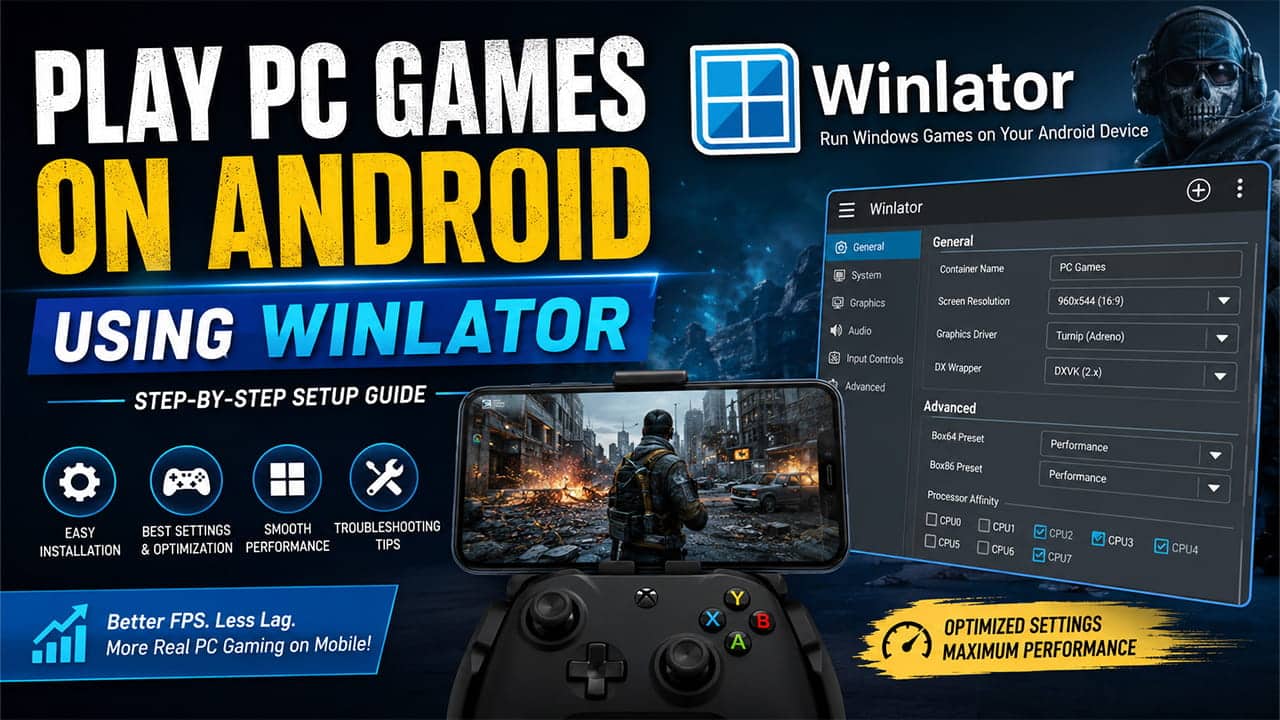
Creating a High-Performance Container
Winlator runs games inside containers. A container is a custom Windows environment with its own settings.
Open Winlator and tap the “+” button in the top-right corner.
A new container configuration screen will appear.
The settings below usually provide a good balance between visual quality and performance.
General Tab Settings
Screen Resolution
Lower resolutions significantly improve performance.
Recommended settings include:
- 960×544
- 800×600
Trying to run games at full phone resolution such as 1080p or higher can reduce frame rates dramatically.
Lower resolutions can later be improved visually using FSR upscaling.
Graphics Driver
Choose the graphics driver based on the phone’s hardware.
Snapdragon Devices
Select:
- Turnip (Adreno)
MediaTek or Exynos Devices
Select:
- VirGL
Using the correct driver can improve both stability and performance.
DXWrapper
Set DXWrapper to:
- DXVK (latest version or DXVK 2.x)
DXVK converts Direct3D instructions into Vulkan commands. Android devices handle Vulkan much more efficiently than many older graphics methods.
Advanced Tab Settings
Box86 and Box64 Presets
Change the preset from:
- Compatibility
to:
- Performance
- Extreme
These options increase instruction translation speed and can improve game performance.
Processor Affinity
Processor affinity controls which CPU cores Winlator can use.
Many modern Android processors contain both efficiency cores and performance cores.
Efficiency cores are designed to save battery life. Performance cores are designed for heavy workloads.
For better gaming performance:
- Uncheck CPU 0
- Uncheck CPU 1
- Enable CPU 2 through CPU 7
The exact core layout may differ depending on the device.
This setup helps Winlator use the faster cores whenever possible.
After completing the settings, tap the checkmark button to save the container.
Launching a Game
After creating the container, locate it in the Winlator home screen.
Tap the three-dot menu beside the container.
Select:
Run
The Wine desktop environment will start.
The phone screen now behaves like a Windows desktop.
Use touch controls to move the mouse cursor.
Double-tapping acts as a left mouse click.
Open the D: drive.
The D: drive displays the contents of the Android Download folder.
Navigate to the game directory.
Find the game’s main executable file (.exe).
Double-tap the executable file to launch the game.
Setting Up Controls
Most Windows games are designed for a keyboard and mouse. Because of this, touch controls must be configured manually.
While the game is running, swipe inward from the left side of the screen.
This opens the Winlator side menu.
Select:
Input Controls
Choose one of the following:
- Virtual Gamepad
- Existing control templates
Templates are useful for different game genres such as:
- First-person shooters
- Strategy games
- Role-playing games
Customizing Controls
The Control Profile Editor allows further customization.
Users can:
- Move button positions
- Resize buttons
- Assign keyboard keys to touch buttons
- Map mouse actions
- Connect gyroscope controls to mouse movement
Proper control mapping can make games much easier to play on a touchscreen device.
Troubleshooting and Optimization Guide
Running Windows games on Android involves many layers of translation. Because of this, problems can happen even when the setup appears correct.
The following solutions help fix common issues.
Game Crashes and Returns to Android
Possible Cause
- Wrong graphics driver
- Incompatible DXVK version
Solution
Open the container settings.
If the device uses a Mali GPU, make sure Turnip is not selected.
Switch to VirGL if necessary.
Try an older DXVK version such as 1.10.3.
If the problem continues, test the game using WineD3D instead of DXVK.
Black Screen with Audio Playing
Possible Cause
The game may fail during display initialization or fullscreen setup.
Solution
Open the game’s display settings.
Change the display mode to:
- Windowed Mode
Disable VSync completely.
Restart the game and test again.
Audio Stuttering and Crackling
Possible Cause
- CPU bottleneck
- Audio buffer problems
Solution
Open the Winlator side menu.
Launch the built-in Task Manager.
Check CPU usage while the game is running.
In the container settings, switch the audio system from:
- ALSA
to:
- PulseAudio
This often improves sound stability during demanding scenes.
Performance Drops After Several Minutes
Possible Cause
The phone may be overheating and reducing CPU or GPU speed automatically.
This process is called thermal throttling.
Solution
Remove thick phone cases if possible.
Allow better airflow around the device.
Limit frame rates using Winlator’s XServer settings.
Another option is changing the Box64 preset from:
- Extreme
to:
- Stable
This reduces overall system load and heat generation.
Fixing VRAM Errors
Some games may display messages claiming there is not enough video memory available.
Solution
Open the container editing menu.
Go to:
Environment Variables
Create a new variable:
MESA_GL_VERSION_OVERRIDE
Set the value to:
4.5
You can also increase the Video Memory Size setting.
Recommended values include:
- 2048MB
- 4096MB
The best choice depends on the amount of RAM available on the phone.
Devices with higher RAM capacities can usually handle larger VRAM allocations more effectively.
Final Notes
Winlator gives Android devices the ability to run many Windows PC games without needing a separate computer. Performance depends heavily on hardware, driver selection, container settings, and cooling conditions.
Snapdragon devices with Turnip drivers generally deliver the best results. Lower screen resolutions, proper CPU core allocation, and DXVK optimization can significantly improve performance. When problems appear, adjusting graphics drivers, DXVK versions, audio settings, and thermal management settings often resolves the issue.
With the right configuration, many classic and modern PC games can run surprisingly well on Android hardware.